
CaseBuddy FAQ - Common Errors and Other Info
April 22nd 2026: IMPORTANT!! TSE Migration of DfM EU on April 25th 2026, WW on May 2nd 2026
DfM EU migrated successfully to TSE/MID on the 25th April! DfM migration to TSEMID/ will complete with the migration of DfM WW coming Saturday 2nd May. See further down for known issues with CaseBuddy and TSE.
If you have missed CSS-wide communications on the TSE migration, read up on the resources below:
Only CaseBuddy versions 2.13.x.x and later support TSE - see below update instructions to ensure you continue to enjoy the case and queue management features in CaseBuddy!
For the Production build: right-click the latest MSIX package from the CaseBuddy Production SharePoint folder and select Download. When the download is completed, click Open file in your browser's Downloads panel.
For the Insider build: right-click the latest MSIX package from the CaseBuddy Insider SharePoint folder and select Download. When the download is completed, click Open file in your browser's Downloads panel.
Users on the Production build: right-click the latest MSIX package from the CaseBuddy Production SharePoint folder and select Download. When the download is completed, click Open file in your browser's Downloads panel.
Users on the Insider build: right-click the latest MSIX package from the CaseBuddy Insider SharePoint folder and select Download. When the download is completed, click Open file in your browser's Downloads panel.
Known Issues
March 2026: VMD Skills and VDM Cloud authentication prompting
The instructions to get access to VDM Cloud should be provided by a user's manager, and their manager must approve the access request. The procedure for is documented here.
Note: Access to VDM Cloud expires every 180 day and must be renewed. If a user previously had access to VDM data, and now the authentication fails, please contact the VDM team.
Updated: 20 January 2026 (AI disclaimer added)
November 2025: QEA launched in CaseBuddy and DfM
QEA is the new way to review cases, with optional AI assistance. "QEA Core" replaces PCMS and we are busy migrating other CaseBuddy review processes and custom review forms over to QEA.
Please see this short demo for an introduction on doing case reviews evaluations in CaseBuddy once your filter has been migrated to QEA: https://aka.ms/QEAcasebuddytraining
More information on QEA: https://aka.ms/qualityevaluationagent https://aka.ms/qeawiki
Known Issues


… go to Case Work -> Tools -> Options and in the Experiments tab, uncheck the 'Use Modern Browser (WebView2) for DfM Auth':
If the interop icon is still greyed out after clicking OK, try click the icon to start the logon.
You can check your roles in Case Work -> Tools -> Options, My Queues tab: if you do not have a TA/Reviewer, you can request it using the DfM Teams bot (will require manager approval - make sure you request it for DfM EE as well if you will be evaluating EU cases).
September 2025: Legacy builds of CaseBuddy (1.x) will blocked soon!
Cause
The MSIX build of CaseBuddy uses modern and SFI-compliant installation/update mechanisms, and has been available since May 2025. Now that the new build is available on CSS AVDs we will be blocking legacy builds as they have been out of support since June.
Resolution
Migrate to the MSIX build of CaseBuddy:
Users on the Production build: right-click the latest MSIX package from the CaseBuddy Production SharePoint folder and select Download. When the download is completed, click Open file in your browser's Downloads panel.
Users on the Insider build: right-click the latest MSIX package from the CaseBuddy Insider SharePoint folder and select Download. When the download is completed, click Open file in your browser's Downloads panel.
------------ Support Changes ------------
Why is email support being retired?
CaseBuddy's rapid growth has led to increased support demands, necessitating a larger support team. However, managing a shared email inbox has presented challenges with issue tracking and coordination. Any emails sent to our aliases may not receive timely responses from the Engineering team, as these distribution lists (CaseBuddy Talk & CaseBuddy Developers) are not actively monitored. We encourage our users to use the new support process.
New Support Process
As of October 31st, 2024, we have retired email support and Azure DevOps (ADO). Support requests are now handled through the CaseBuddy tool by the EUS Team, with 24/7 assistance from the EUS Team supported by CaseBuddy team.
How can I get support for general questions?
For general inquiries that do not need direct support or feature interaction, you can send your question to the CaseBuddy community.
Join our user community via the distribution list CaseBuddyTalk (direct link provided within the tool).
CaseBuddyTalk is a community-driven distribution list where users can share questions and receive answers from the community. It is not monitored by the Engineering team and is not intended for reporting incidents or bugs. For incidents, bugs, or feature requests, please use the appropriate designated channels.
For more details go to -> CaseBuddy
------------ Problems Logging on to CaseBuddy ------------
DNS or Network Error
CaseBuddy may report a problem with DNS or Network whilst you are logging on, even though you are still able to connect to the Internet with other apps. Access to CaseBuddy and DfM now require you to be using a VPN (MSFTVPN-FULLCONNECT for MEA and China users, MSFT-AzVPN-Manual for others).
.Net and MSAL (the .Net Entra authentication library used by CaseBuddy) are sensitive to changes in your local network stack, so the first thing to try is to disconnect and reconnect your VPN.

Disconnecting and reconnecting your VPN can also resolve network-related problems during CaseBuddy logon (restart CaseBuddy after the VPN is reconnected).
Cannot logon to CaseBuddy - forgotten or expired password
CaseBuddy's MSAL-based AAD authentication does not support the password change flow. If you have a problem logging on due to expired or forgotten password please visit https://msaas.support.microsoft.com from an in-private browser tab, where you will be able to go through password update/reset. Once you reach the page you can close the browser and restart CaseBuddy.
Missing MSaaS Agent Account
If you see the error below whilst logging on to CaseBuddy:
...then your DfM account is likely marked for blocking, or you have not yet requested one. Note: in rare situations this error can occur if there is a (network) issue preventing access to the MSaaS API.
Your MSaaS Agent account is provisioned at the same time as your DfM/OneSupport account, and will reflect changes made in DfM's Account Management Tool, which includes being marked as disabled due to inactivity.
If you cannot access https://aka.ms/onesupport your first step is to get access to DfM. FTEs (full time employees) can use the DfM Self-Service Teams Bot (details at https://aka.ms/eus); delivery partners should work with their manager, PTA or SDM.
If you have been able to access DfM (https://aka.ms/onesupport) for at least 4 hours and still cannot logon to CaseBuddy (or can logon but cannot view your cases/queues), ask the DfM Bot (see above) to 'check my account status'. It is most likely marked as blocked or missing, in which case you can ask the Bot to 'provision my account' or 'unblock my account'.
Must use an @microsoft.com ID
CaseBuddy does not support @microsoftsupport.com or @*.support.microsoft.com IDs for initial app logon, only @microsoft.com.
If you have tried unsuccessfully to logon to CaseBuddy with an @microsoft.com ID, you should be seeing one of the errors in the previous section, and should follow the guidance there,
Most existing users of CaseBuddy will have an Agent Service account for their @microsoft.com ID. New DfM users should be automatically provisioned with an Agent Service account.
App below minimum required version
The MSIX build of CaseBuddy uses modern and SFI-compliant installation/update mechanisms, and has been available since May 2025. Now that the new build is available on CSS AVDs we are blocking legacy builds from 20th September as they have been out of support since June.
For continued access to the app, migrate to the MSIX build of CaseBuddy:
Uninstall all legacy builds of CaseBuddy (1.x) using Add/Remove Programs. After the initial install of the MSIX package CaseBuddy will automatically update as required going forward.
Expired Token Returned from AAD
AAD authentication has succeeded however the returned token appears to be expired according to your local PC. This usually occurs when the TimeZone and or Time are set incorrectly on your PC - please make sure they are correct, and the restart CaseBuddy to retry the logon.
In rare cases the MSAL (authentication library) is causing the problem - if your TimeZone/Time are set correctly, a PC restart and/or waiting approx. 20 minutes should get things working again.
ZScaler Network Rule blocking logon
We have received several logon failure reports from Sonata users with the following error in the CaseBuddy debug log (%localappdata%\CaseBuddy\debug.log):
** System.UriFormatException ** Invalid URI: The hostname could not be parsed.
This is related to network configuration and appears to be specific to certain Sonata users.
Sonata users should refer to Sonata IT to get the ZScaler policy updated for their PC.
------------ Other Issues ------------
DTM authentication error popups when running builds older than 1.1.21.5
Due to a change in the DTM application ID on 13th February 2024 CaseBuddy's DTM functionality will not work and authentication popups will be shown multiple times whilst the app attempts to collect DTM information for your owned cases.
Application updates have been released - the issue should be fixed in >=1.1.21.5.
if you are not offered an update when restarting the app, see this section in the FAQ.
Cannot Load My Cases or Queue view; Update Case or Add Case Notes/Review; or Search for Queues by Name
If you can logon to CaseBuddy but:
Forbidden: Don't have Read permission for MSEG.QueryService.V1.SlaItem Failed
... or ...
Forbidden: Don't have Read permission for MSEG.QueryService.V1.Kpi Failed
...or...
user 'xxxx@yyyyy' is unauthorized for action 'StartAgentSession'
... or ...
Invalid case request - SessionId is required
... then your DfM account has likely been marked for deactivation/blocking in DfM Account Management Tool. Please see the DNS or Network Error section for remediation.
Cannot Read/Load/Update Cases (e.g. save PCMS Review note)
CaseBuddy makes calls to DfM via the MSaaS API. MSaaS maps your Agent Service account (used by CaseBuddy) to a DfM account using the alias part of your alias@microsoft.com field.
If you see an error similar to:
... then there is likely an issue with the configuration of your DfM account (alias not mapped, DfM account blocked, etc).
If you are unable to logon and use https://aka.ms/onesupport (DfM) raise a support ticket at https://aka.ms/bts to fix your DfM access. If you can logon to and use DfM, email casebuddydl@microsoft.com for further guidance
Closed Cases or Collabs/Tasks showing as Open in CaseBuddy
CaseBuddy gets your case list and unassigned cases from the MSaaS QueryService, which is downstream from DfM. It is possible that when a case or collab is closed in DfM, the close event does not propagate correctly to MSaaS and other downstream systems.
When this happens CSS BI (Business Intelligence) reporting will also be impacted, so it is important that you raise a support ticket at http://aka.ms/bts and request that they re-trigger/correct the closure of the case/collabs for downstream systems (this is not something the CaseBuddy team can do!). Make sure you include following in your support ticket description
Cannot Refresh WIP or Queue - Backend Service Issue
CaseBuddy gets your case list and unassigned cases from the MSaaS QueryService, which is downstream from DfM. In rare situations the QueryService may be running slow or have a fault, preventing your case load and/or the queue view from refreshing. The error displayed in CaseBuddy usually contains the text <!DOCTYPE html PUBLIC. More recent builds of CaseBuddy will attempt to detect this type of failure and redirect you to this text.
NB: This is typically not an issue the CaseBuddy team can resolve. If the problem persists for more than an hour an IcM should be raised; or you can email CaseBuddyTalk@microsoft.com to check if one has been raised.
Why do I get a logon prompt for DfM?
IMPORTANT: On July 16 DfM will be moving to the corporate Microsoft tenant (@microsoft.com). If you already use DfM Interop in CaseBuddy, your CaseBuddy-DfM logon experience may be different i.e. if the DfM logon fails with a message 'You have been signed out' in the middle panel, click Retry and then Yes to logon to the new DfM instance and select your @microsoft.com ID when prompted. If your PC is work-place joined to Microsoft and you are using Windows Hello (e.g. PIN to logon to your PC), choose this option for authentication. Make sure you select 'Stay Logged On' if offered. Unfortunately this SSO experience is optimised for WebView2, and make not work well on Windows 2016 and other OS's that do not have the Edge browser installed.
CaseBuddy uses the MSaaS API for most of your case work operations, however it has a few limitations. If you logon to DfM (using your MID account with MFA), Casebuddy can make calls to DfM on your behalf to enable the following features:
If you do not need or use these additional features you can disable DfM interop (and the additional logon prompt) in Case Work | Tools | Options, Experiments tab. You will still be able to use CaseBuddy to manage your cases (view queues, view and update cases).
Closed cases or collabs are still showing in the queue or your work bin
This is a typically a DfM issue.
DfM uses ServiceBus event-based sync to update MSaaS QueryService, which is where CaseBuddy collects its grid views. Occasionally (or during an outage such as on 20th April 2022) events are lost but the glitch goes unnoticed as it is corrected by another change event to the case/collab property e.g. changing owner again creates a new owner-update event that fixes the missing event.
Certain "lost" events - such as the close event; SLA met; etc - cannot be caught up as there is no way to create a follow up change to trigger a new sync event.
Whereas CaseBuddy could implement a feature to ‘hide closed case/collabs’ the problem is that these case/collabs are shown incorrectly in other downstream systems, such as CE&S BI reporting.
The right way to resolve this is to raise a ticket with https://aka.ms/bts and provide them the case/collab numbers, explaining that their Open/Close states are out of sync between MSaaS MSEG.QueryService.V1.Case_v1 and DfM; and that this also impacts CE&S BI/LT reporting.
BTS can fix the states in downstream systems; we cannot – please do not let them redirect you back to the CaseBuddy team.
Note: opening the case in CaseBuddy will show the correct state - this is because the MSaaS API we use (to display the full case) does a direct passthrough read to DfM.
SLA is showing incorrect value in the queue or your bin, but is correct when opening the case in CaseBuddy
There is a known issue raised with SxG (the DfM dev team) whereby changing the severity on a case does not recalculate the SLA in MSaaS. The issue was fixed in October 2021, but came back in February 2022 and has not been addressed since (open bug is still in a Pending state).
I cannot see my queues in CaseBuddy
CaseBuddy still uses your ServiceDesk agent profile for logon and configuration; this is a limitation of the MSaaS API that we use. Until MSaaS move to DfM Agent Service, you have two options to get your missing queues into the queue selection list:
Case Review Notes Must Not Include PII or Support Data
In order to comply with strict TrIP and EUDB policies, you must not enter PII (personally identifiable information - such as a customer name, IP address, email, etc) into a free-text Case Review field. This also applies to Support Data which generally covers any information/text/data/file that is generated or collected during the course of a support incident.
TrIP have agreed to classify Case Review notes as Microsoft Business Data (and therefore not subject to EUDB air-gap policy) provided that you do not include any customer data in the review note. For example "Please follow up with an EE to discuss the debug results" is OK, whereas "Please discuss findings in srv1001_rdp.dmp with an EE" is not, since the file name potentially identifies the name of a customer server. Similarly, pasting in stack dumps, snippets of traces etc is not permitted.
If you need to provide the case owner with guidance that involves support/customer data, add a separate Case Note i.e. your review note could be "Please review the technical recommendations I have added directly to the case" (and then use CaseBuddy Case Work or DfM to add your technical notes to the case).
Accessilility Tips
Keyboard Navigation - CaseBuddy Main Window
The Tab key cycles between:
Besides the normal menu accelerators (e.g. Alt + C to select Case Work menu), the following are also available:
Ctrl + F - focus on case finder box
Alt + U - focus on queued/unassigned case list
Alt + W - focus on WIP/owned case list
Alt + NumPad '+' - increase font size in grid views. Ctrl + MouseWheel can also be used, but only when the WIP/owned list is in focus.
Alt + NumPad '-' - decrease font size in grid views Ctrl + MouseWheel can also be used, but only when the WIP/owned list is in focus.
Note: you can hide the Accessibillity Tips button in Case Work | Tools | Options, Display tab.
Edits to a case or collab do not show in the grid view, or revert after the view is refreshed
CaseBuddy builds its grid views using the MSaaS QueryService - an 'offline' SQL-like database that is kept in sync with DfM's case database using servicebus events. The QueryService is kept up to date with DfM state using events issued to a ServiceBus by a DfM plug-in.
If the DfM plug-in (or ServiceBus) is having performance issues, events may be delayed or in some cases dropped. In the former case, QueryService (and CaseBuddy grid views) may take longer than the normal 3 to 5 seconds to reflect updates. However in the latter situation, data in QueryService can only be caught up by a subsequent change to the same case property. By way of example, this section explains how closed cases are 'stuck open' in CaseBuddy and BI reporting systems since the case state is typically not changed again after being set to 'closed'.
Opening a case for edit in CaseBuddy pulls the case data directly from DfM (via MSaaS API) and therefore will show the actual/live data. In other words; if the grid view differs from the case editor data, the case editor will show the correct data.
DfM have implemented IcM watchdogs to monitor the performance of the DfM plugin and ServiceBus. During an outage they will typically replay all dropped events to ensure downstream systems are in sync, however there are still situations where lost events are not recovered, and the grid view in CaseBuddy (and downstream BI reporting) show incorrect data.
Colouring and Tagging in CaseBuddy Grid Views
Case Number and Case Type
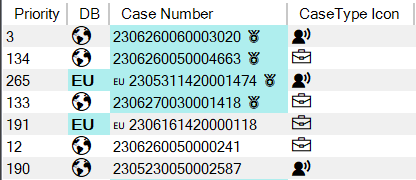
DB column (Data Boundary), if present, will show a globe icon for Global cases, and 'EU' with a Light Blue background for EU DB cases. The Case Number column will also be prefixed with 'EU' for EU DB cases.
Strategic cases have a Light Blue background behind the case number and a badge suffix (🏅).
The following customer types count as Strategic in CaseBuddy:
The Case Type Icon shows a briefcase icon for Cases and a person with voice lines for Collabs.
Severity, SLA, TIQ and Service Tag Coloring
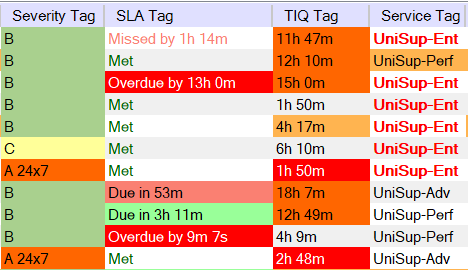
TIQ (Time in Queue) background colours:
NOTE: TIQ is calculated using the Last Owner Changed timestamp. That means if a case is transferred to a new queue without have been assigned to an agent, TIQ will be the total time in original and target queue.
Service Tags in Bold Red text are 'special' service offerings, such as Unified Support - Enterprise (UniSup-Ent), Support for Mission Critical (SfMC), Azure Rapid Response (ARR), Third Tier (T3), US National (USNAT), etc.
Other Colouring
If all foreground/text is Red then the case is associated with an SIE (IcM for Service Interruption Event).
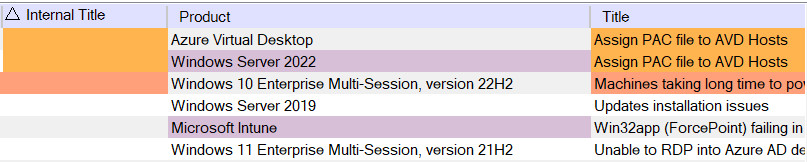
Columns that are not already coloured (i.e. to identify Strategic, Severity, SLA, TIQ, special offering) can have one of three background colors:
CaseBuddy AI Experiments - Transparency FAQ
What AI features are in CaseBuddy?
CaseBuddy integrates several AI-powered experiments that use either ZebraAI or other Microsoft-approved AI systems. Some use only user-entered text; others summarize or retrieve case/VIKI data.
What are the key limitations of these AI systems?
Should engineers rely solely on AI output?
No. AI suggestions are assistive, not authoritative.
Engineers must validate all summaries, matches, recommendations, and troubleshooting steps.
What should I do if AI output looks wrong or unsafe?
Why do we provide this transparency?
Microsoft's Responsible AI principles require us to clearly communicate capabilities, limitations, risks, and proper use of AI systems.

